Your Windows VPS is running low on storage space, or showing full disk warnings.
Budget VPS Plans
You are running NinjaTrader on a cost-effective VPS plan with limited storage capacity.
Quick Optimization
You need a safe way to clean unnecessary files and reclaim up to 10 GB of space.
A companion to the Setup Guide · September 2026 clarasystems.io
Contents
01Who This Is For, And Why It Exists05NinjaTrader Settings02The Small VPS & What NinjaTrader Asks For06Housekeeping, Once Or Twice A Month03Use The VPS For Trading Only07Never Delete04One-Time Windows Changes08What We Saw
Clara Core · Small VPS Guideclarasystems.io
01
Who This Is For, And Why It Exists
A VPS is a rented Windows computer that stays on when yours is off, so an automated strategy can run around the clock without depending on your own machine, your own power or your own internet. A home connection drops; a data centre connection is built not to, and that reliability is most of the reason to rent one at all.
VPS plans are priced by size, and the cheapest ones are cheap because their limits are tight: one processor core, 2 GB of memory, a 30 GB drive. This guide is written for traders who want to run a single strategy on one of those plans, and who find the disk nearly full before they have installed anything. It is not only for the cheapest plans: the same steps free space on any Windows VPS that is showing low disk warnings, and they are worth running once on a larger machine simply to keep it lean.
This is not a recommendation. NinjaTrader publishes minimum and recommended hardware specifications for its platform, and entry-level plans meet the bare minimum only. We run our own live accounts on the Hyonix HS-3, which meets the recommended specifications, and since September 2026 we have also been testing the HS-1, the smallest plan, on our own accounts. Section 02 says how it compares and how that test is going. If you run a larger VPS, the same steps free space there too; you just need them less often.
What follows: why the disk arrives full, what the small plan is and what NinjaTrader asks for, how to keep the VPS clean, the five one-time Windows changes that freed about 10 GB on ours, the NinjaTrader settings that matter for disk space, the monthly housekeeping, what never to delete, and what we saw before and after.
Read this first
We are not IT technicians. The steps in this guide come from our own testing, and we ran them on three of our own servers, where everything worked without issue. We have not tested them on a personal computer.
Nothing here is official technical or hardware advice. It is a record of what we did and what worked on our machines. If you are unsure about any of it, check with a qualified technician before making changes to a server you rely on.
Clara Core · Small VPS Guideclarasystems.io
Why A New VPS Shows The Disk As Full
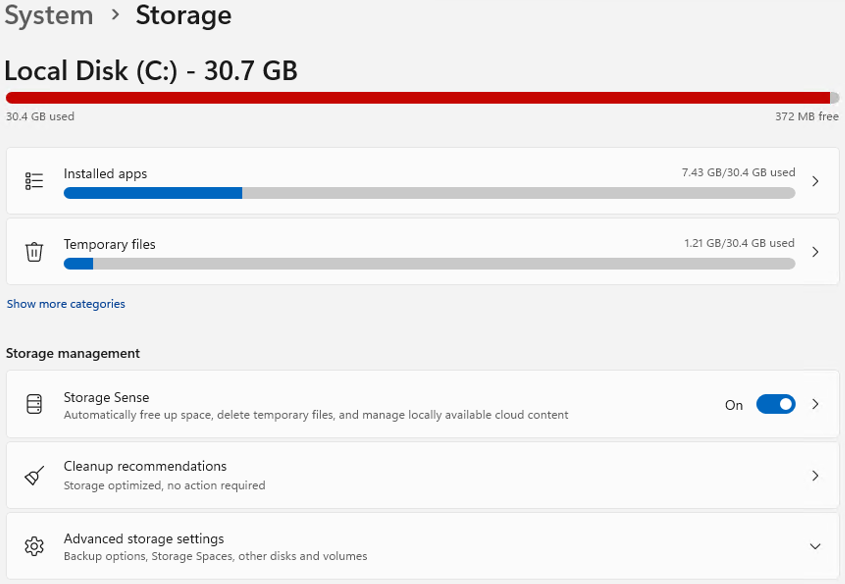
The smallest plans, such as the Hyonix HS-1 at $6.50 a month, come with a 30 GB drive. Windows Server takes most of it before you install anything. On our fresh HS-1, 30.4 GB of 30.7 GB were in use, with 372 MB free.
Local Disk30.7 GB
Used GB30.4 GB
Free GB372 MB
Our HS-1 as delivered: 30.4 GB used, 372 MB free.
Every account we trade runs on Hyonix. Clara Systems is an affiliated partner: if you open your account through our link we may earn a commission, at no cost to you. It is a free way to support us and we appreciate it.
Clara Core · Small VPS Guideclarasystems.io
That is not a fault of the VPS. Windows keeps files it does not need on a machine that only trades: a hibernation file, a large reserve for virtual memory, update leftovers and uncompressed system files. Remove those, and the same drive has room to spare. The steps in section 04 freed about 10 GB on ours.
02
The Small VPS & What NinjaTrader Asks For
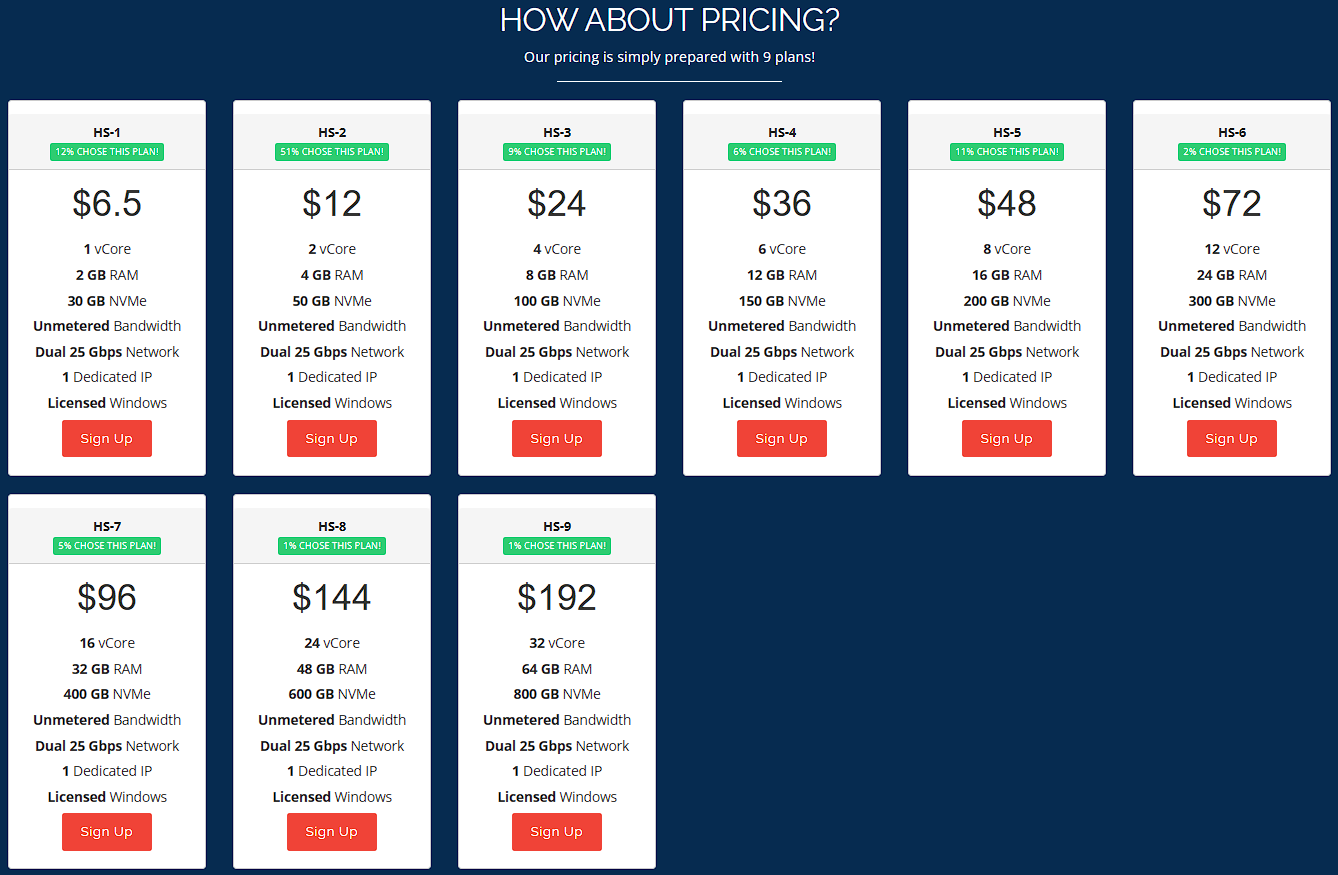
Hyonix sells nine plans. The HS-1 is the smallest. The HS-2 and HS-3 have run our accounts without an issue. Since September 16, 2026 we have also been running the HS-1 on our own accounts as a test, because readers asked whether a cheaper plan works. As of September 23, 2026, the day this was written, it has taken every trade, missed none, and has not crashed. We will say here how the first month went. Until then it is a test in progress, not a recommendation.
PlanHyonix HS-1, $6.50 a month
Processor1 core, AMD Ryzen 9
Memory2 GB
Storage30 GB NVMe
WindowsServer 2025 Datacenter, included
Clara Core · Small VPS Guideclarasystems.io
Hyonix plans and prices as shown in September 2026. Prices change; check their page.
The provider we use
Hyonix is the virtual private server we use to run Clara Core. Every account we trade runs on it, and it is the only provider that has not cost us a trading day or given us a connection problem.
This is a referral link: Clara Systems may earn a commission if you use it, at no extra cost to you. Clara Core stays free either way.
When you order, the form lets you choose the Windows version. Choose the latest one offered. Ours came with Windows Server 2025 Datacenter.
Clara Core · Small VPS Guideclarasystems.io
Location: pick Chicago if it is available
The exchange that executes every MNQ order is in Aurora, Illinois, just outside Chicago. Choosing a Chicago location puts your VPS as close to the exchange match engine as possible, which keeps network latency to a minimum.
Sub-millisecond execution is not critical for Clara Core, since the strategy trades on 2 minute bars. Choosing the closest region simply gives you the cleanest and most reliable connection to the market.
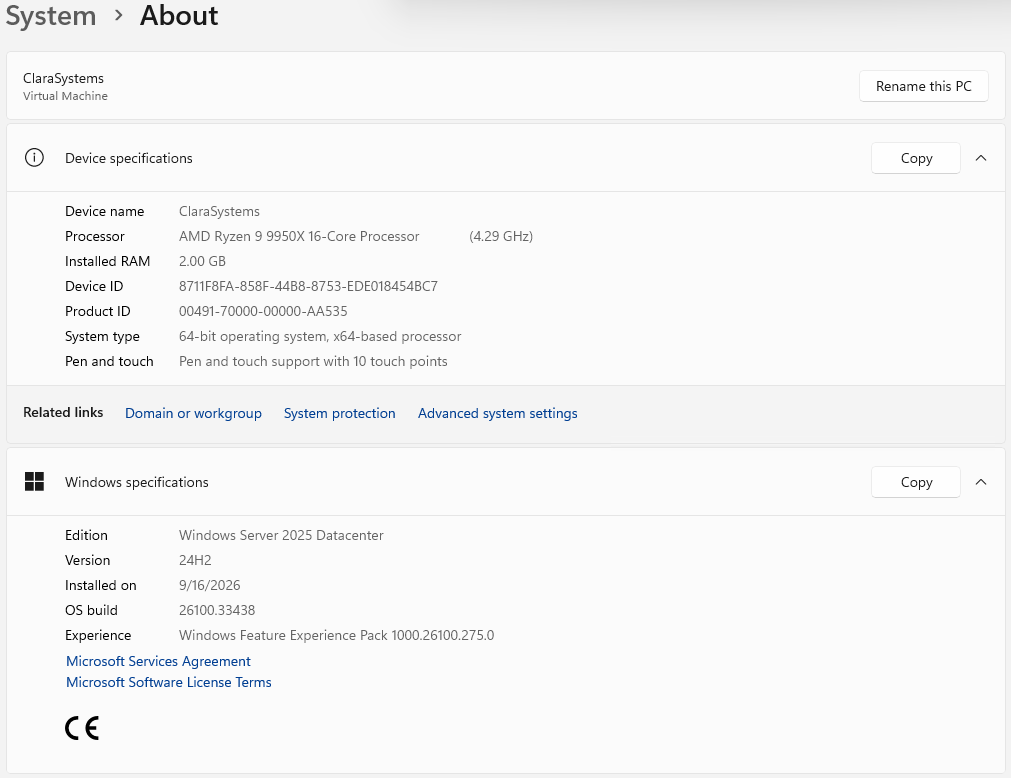
Our HS-1: one core of an AMD Ryzen 9, 2 GB of memory, Windows Server 2025 Datacenter.
What NinjaTrader Desktop Asks For
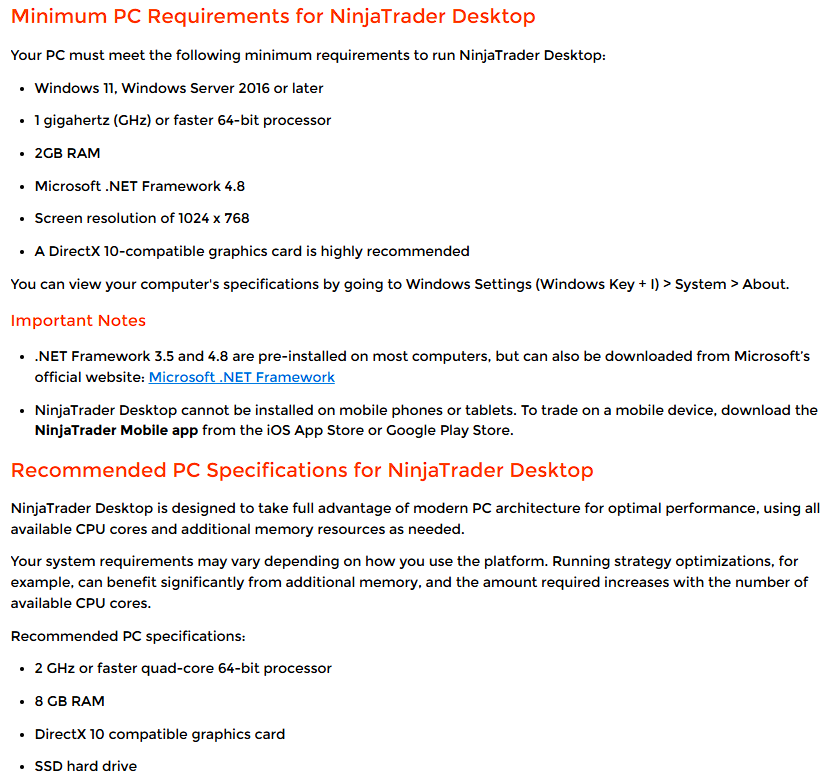
NinjaTrader publishes what its Desktop platform needs. Their article was created March 3, 2023 and last updated August 20, 2026, and we read it in September 2026. We do not track it: when a new NinjaTrader version is released, check their page yourself, and if the platform crashes or misses trades on a small plan, move to a bigger one.
Clara Core · Small VPS Guideclarasystems.io
NinjaTrader's minimum and recommended specifications, September 2026.
Against that list, the HS-1 meets the minimum and not the recommendation: the processor is fast but there is one core, memory is exactly 2 GB, storage is NVMe, and a VPS has no dedicated graphics card, only a virtual display adapter. It runs one strategy on one chart, which is all Clara Core needs. It will not run several platforms, optimizations, or anything else at the same time. If you choose it, do every step in this guide.
What ours actually carries: three charts, two automated strategies with one on each chart, and a third chart we use for manual trades with ATM orders. No crashes, and NinjaTrader has never closed on us. It is noticeably slower than the HS-2 and HS-3 when logging in, but the trades have been identical to them. On one strategy with one to four accounts, it handles it.
Clara Core · Small VPS Guideclarasystems.io
03
Use The VPS For Trading Only
A small VPS stays healthy when nothing else runs on it.
1
Do not install a second browser. Microsoft Edge is already there for the few pages you need, and you should hardly need a browser at all.
2
No email, no video, no browsing. The VPS is not a second computer.
3
After you install Clara Core, delete the zip file you downloaded. It has done its job.
4
Do not run an AI assistant, a coding tool or any other program on the VPS. On 2 GB of memory and one core, anything else competes with NinjaTrader for the same memory and processor time, and that is true for any strategy, not only ours. If you must run something, do it with NinjaTrader closed and outside trading hours.
5
Once the chart and the strategy are running, close every other window.
6
When you step away, close the remote desktop window only. Do not shut the VPS down; that stops the strategy with it.
04
One-Time Windows Changes
Do these once, in this order. Together they freed about 10 GB on our VPS; we did not measure each step on its own.
On a personal computer
These steps are written for a VPS that only trades. On a personal computer, do step 1 and step 5 freely; steps 2, 3 and 4 change how Windows uses the machine, so leave them out, or ask a computer technician first.
Clara Core · Small VPS Guideclarasystems.io
Step 1 · Disk Cleanup
1
Open Disk Cleanup. Hold the Windows key and press R. A small Run box opens at the bottom left. Type the command below, or copy and paste it, then press Enter.
cleanmgr
2
Choose the drive. Select C: and click OK.
3
Include the system files. Click Clean up system files at the bottom left, and choose C: again if it asks.
4
Tick everything offered. Windows Update cleanup, temporary files, setup log files and the Recycle Bin. The list is not the same on every version of Windows, so tick every box that appears.
5
Run it. Click OK, then Delete Files.
Step 2 · Compress The Windows System Files
Windows can store its own files compressed. It runs the same afterwards.
1
Open Command Prompt as administrator. Click Start at the bottom left and type cmd. Command Prompt is the black window Windows uses for typed commands. When it appears in the list, right-click it and choose Run as administrator. Click Yes if Windows asks.
2
Run the command. Type the command below, or copy and paste it, then press Enter.
Compact.exe /CompactOS:always
3
Wait for it to finish. Two to five minutes. It ends with a line saying the system files were compressed, and a ratio.
Step 3 · Cap The Virtual Memory
Windows sets aside part of the drive as virtual memory and lets it grow. Give it a fixed size instead.
1
Open the system properties. Hold the Windows key and press R. A small Run box opens at the bottom left. Type the command below, or copy and paste it, then press Enter.
Clara Core · Small VPS Guideclarasystems.io
sysdm.cpl
2
Find the performance settings. Open the Advanced tab. Under Performance, click Settings.
3
Find the virtual memory. Open the Advanced tab in the window that just opened. Under Virtual memory, click Change.
4
Take Windows off automatic. Untick Automatically manage paging file size for all drives.
5
Set the two sizes. Select C:, choose Custom size, and enter these.
Initial size (MB)1024
Maximum size (MB)2048
Do not set these lower to save more space. With only 2 GB of memory, if this file is too small and the memory fills, Windows closes programs rather than slowing down, and the program it closes would be NinjaTrader. A maximum of 2048 already frees most of what Windows was holding.
6
Save it. Click Set. Without that click nothing is saved. Then OK, Apply, and restart the VPS when it asks.
Step 4 · Turn Off Hibernation
A VPS never hibernates, but Windows keeps a file the size of part of its memory for it.
1
Open Command Prompt as administrator. Click Start at the bottom left and type cmd. Command Prompt is the black window Windows uses for typed commands. When it appears in the list, right-click it and choose Run as administrator. Click Yes if Windows asks.
2
Run the command. Type the command below, or copy and paste it, then press Enter.
powercfg -h off
3
Check it worked. The prompt returns to a blank line with no message. That means it worked and the file is gone. If it was already off, nothing changes.
Clara Core · Small VPS Guideclarasystems.io
Step 5 · Pause Windows Updates
Updates download in the background and can land during market hours.
Windows + I › Settings
1
Open Windows Update (on older versions, Update & Security, then Windows Update).
2
Under Pause updates, choose the longest period offered, five weeks on current versions. The pause ends on its own, so renew it; let the updates install on a weekend, when you restart the VPS anyway.
3
In Settings, open System, then Storage.
So Windows does not run its own disk cleanups during a session.
Storage SenseOff
05
NinjaTrader Settings
NinjaTrader fills a drive quietly through recorded market data and chart history. The Setup Guide sets the settings that matter; check they are in place.
Control Center › Tools › Options › Market data
Record live data as historicalOff
That is the one that fills a small drive over time.
The chart › Data Series › Time Frame
Clara Core · Small VPS Guideclarasystems.io
Days to load3
The Setup Guide sets 5. On a small VPS, set it to 3. Clara Core needs 20 bars of the current day before it can trade, about 40 minutes, and nothing from earlier days, so 3 days leaves a wide margin. Do not open charts you do not need; each one keeps its own history.
Backtests
Run them on your own computer if you can. The full MNQ history is the largest thing NinjaTrader stores, and the VPS does not need it in order to trade.
If the VPS is your only option, it will do the job: run the cleanup in section 04 first so there is room, then run your backtests. When you are finished and ready to go back to trading, delete the data again so the machine stays lean. Close NinjaTrader, open Documents, then NinjaTrader 8, then db, and delete the five folders named in section 06: cache, day, minute, replay and tick. Delete the folders themselves, not only what is inside them, and touch nothing else in db.
06
Housekeeping, Once Or Twice A Month
Close NinjaTrader first.
Documents › NinjaTrader 8
1
Delete the five data folders. Inside db, delete these five folders: cache, day, minute, replay and tick. Delete the folders themselves, not only what is inside them. NinjaTrader rebuilds them and downloads the few days your chart needs the next time it connects. Never delete the db folder itself: it also holds your accounts and your order records.
2
Thin out the logs. Inside log and trace, keep today and the last two closed days, and delete the rest. If today is the 25th, keep the 25th, the 24th and the 23rd.
3
Right-click the Recycle Bin on the desktop and choose Empty Recycle Bin. Until you do, the space is not free.
Clara Core · Small VPS Guideclarasystems.io
07
Never Delete
Leave these alone
Inside the NinjaTrader 8 folder, leave bin, templates and workspaces alone. They hold the strategy, the indicators and your saved chart layouts. Leave the db folder itself in place, for the reason above.
08
What We Saw
The same HS-1, before and after, read line by line.
As Delivered, With NinjaTrader 8 Installed
Local Disk30.7 GB
Used GB30.4 GB
Free GB372 MB
After The Steps
Local Disk30.7 GB
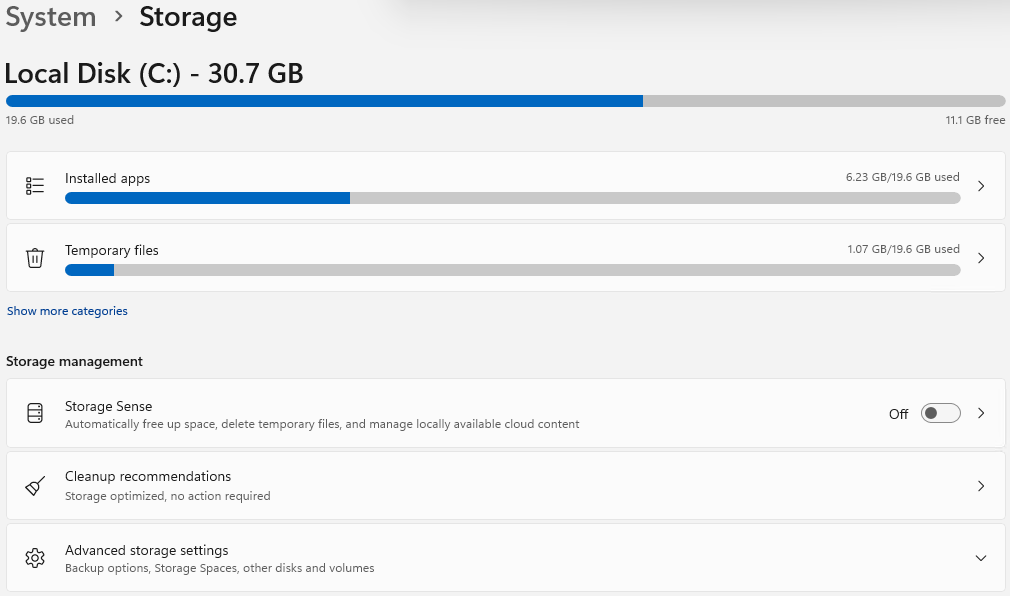
Used GB19.6 GB
Free GB11.1 GB
Clara Core · Small VPS Guideclarasystems.io
Same VPS, same Windows, same NinjaTrader, and the strategy kept trading on the days in between, including the days it ran with only 300 MB free and Windows warning about storage constantly. That is what made us do this in the first place, before paying for a bigger plan. A small VPS is enough for one strategy on one to three charts; what it needs is a clean machine. Just remember that the more you keep open, the slower it tends to get.
The same HS-1 after the steps: 19.6 GB used, 11.1 GB free.
What This Did On Ours
September 2026, one Hyonix HS-1 with a 30 GB drive: 372 MB free before, 11.1 GB free after. Those are our figures on our machine, not a promise about yours. Prices, plans and Windows versions change, so check before you buy.
Hyonix is the virtual private server we use to run Clara Core. We have run the HS-3 and the HS-2, and since September 2026 the HS-1 as well.
Clara Systems is an affiliated partner of Hyonix. If you open your account through our link we may earn a commission, at no cost to you. It is a free way to support us and we appreciate it.